What's New
The latest improvements to SplashReel, our water polo highlight-reel app, newest first. Most of these came straight from what beta testers told us at the pool.
SplashReel is on the App Store
Get it on the App Store. If you were testing it, install the App Store version on the tagging device and on every phone that films. It replaces the beta, and your games stay put.
Every device in a game needs the same version, because phones join by typing a 4-digit camera code that older versions can't send. Settings > About on each device tells you which one it's on.
SplashReel 1.0
Version 1.0 (90)September 2026
SplashReel is out of beta and on the App Store. It's free to download, your first two games are free, and everything you film still stays on your device.
Plans
Season Pass and Team Season Pass
After your first two games, the Season Pass ($39.99 a year) keeps every export clean, with a reel for any player you tag, built one at a time. The Team Season Pass ($300 a year) adds the team layer below. Both live in Settings > Access, next to Restore purchases.
Beta testers stay free
If you tested SplashReel, nothing changes for you. Your free access carries over to the App Store version on the same device.
For the whole team
Build all player reels
One tap builds a reel for every tagged player in the game, instead of one pass per kid.
Team stats
The tag log becomes a box score: goals, assists, steals and blocks per player, goalkeeping with save percentages, man-up conversion, and a season record. Share it as a game or season PDF report.
Everyday fixes
Back up the whole library in one tap
Settings > Back up your games copies every game, rosters included, to a drive or iCloud Drive.
A full-screen moment editor
Editing a moment now opens full screen, and you can pinch the video to zoom in on the play.
See where your space goes
Settings > Storage splits what SplashReel keeps into your games and everything else, with a button to clear temporary files.
Your free access, locked in
Beta builds 69 to 72August 7, 2026
SplashReel is getting ready for the App Store, where it will eventually cost money. You are a beta tester, so for you it stays free. That promise used to live in an email; these builds write it into the app itself. Nothing about filming or tagging changes.
Being a beta tester
A welcome, once
The next time you open SplashReel, a small welcome says thank you and confirms that your free access is already active on this device. It shows up exactly once. If you close it with Later, everything it offers is waiting in Settings.
Back it up with your email
Your free access lives on your iPad or iPhone. If you ever switch devices, we restore it, and your email is how we know it's you. Leave it there, or any time in Settings → Beta tester. The app opens a ready-made Mail message and you press Send. SplashReel itself still sends nothing anywhere, same as always.
The terms grew up
The old terms called SplashReel a beta for personal use only. The new ones cover using it for your team, club, or coaching work, which is what most of you are doing anyway.
Housekeeping
A tidier Settings, and a tidier Files
The developer memory tools moved under Advanced in Settings, and the memory log no longer sits next to your games in the Files app. Share diagnostics is still right there for when something needs a report.
The phone stops getting in its own way
Beta builds 62 to 68July 29, 2026
A tester filmed a whole game with a tripod knob across the lens and never saw it. Later her iPad died, she picked up her phone to carry on tagging, and could not reach the Start button. Everything here comes from those two afternoons. Nothing on an iPad changes.
Filming on a phone
The screen is a viewfinder again
While you film, the panel of buttons steps out of the way and leaves you the picture: a red dot, how long you have been filming, and Stop. Stop never hides and never moves. Everything else, including Save my footage to Photos, is behind the small chevron next to it, and comes back for a few seconds whenever you tap it. Before you start filming, the screen is exactly as it was.
You can finally see how long you have been filming
It used to say "Recording…" and nothing else. On a tripod, between quarters, that is the one number you want and the one you cannot work out by looking.
Check the corners of your frame
Tap Record and filming starts straight away, then for three seconds the picture opens out to show you the whole frame, edge to edge, over "Check the corners of your frame." This is the important one: a tripod clamp, a finger or a case lip always creeps in from an edge, and until now the preview was quietly trimming the top and bottom off what it was actually recording. Tap to skip it. Nothing is lost either way, because you are already filming.
The iPad shows the true frame while you aim
The new-game card says "aim the camera, then press Start", and it was showing you a slightly cropped version of what it was about to record. While you are aiming you now see all of it. Once you press Start it fills the screen again, because then you want the play as big as possible.
Tagging on a phone
You can start a game from your phone
If your iPad dies, your phone can take over. The new-game card scrolls now, and Start is pinned to the bottom where you can always reach it, along with the reason it is waiting, if it is waiting for something.
The caps come to you
Pick a play and the grid of plays gets out of the way, so the cap numbers and the assist row are right there without scrolling. Tap the play name to bring the grid back and change it. On an iPad nothing changes: there is room for everything at once.
Battery, before it matters
The new-game card already warned you about disk space. It now says the other thing that ends a day: "Battery is at 12%, and a full game can take about an hour." Plugged in, it says nothing at all.
A library you can read, and a roster you can fix mid-game
Beta builds 58 to 61July 27, 2026
This one came from a photo of a real season on a real iPad: ten games, two squads, names that had gone wrong months ago. Every review before it used made-up games, and made-up games are tidy. The home screen now tells you what each game actually contains, and a roster you picked in a hurry can be fixed without ending the game.
Your games, at a glance
Each game says what it holds
A row used to be a name and a date. It now reads like "vs Newport" over "Legacy U16 · Sun Jul 20, 3:04 PM · 42 moments · 1:12:30 filmed", with a picture from the game and what it costs you on disk. The team comes first, because on a club iPad that's the thing you scan for. And the size is finally somewhere you can see it: until now the only way to find out what a game was costing you was to start deleting it.
A game tells you when something is off
A game with 5 of 43 clips looked exactly like a game with 43 of 43, on the same device that once lost 38 clips to a full memory. Now the row says so, in amber: "5 of 43 moments have clips". A game with moments still missing a detail says that too. Neither is ever hidden, because hiding a row is the one thing that can hide footage you can't film again.
Filmed but never tagged, or nothing at all
Two games with zero moments are usually opposite problems, and they now read as such: "Not tagged yet. 41:12 of footage is waiting." is a to-do, and "Nothing filmed and nothing tagged. Safe to delete." is a mis-tap you can clear out.
Search, and headings that are true
Search across game and team names. The screen is called Library now, with a heading over each section, because it was called Games while its first row was Players.
Name the opponent, not the game
The name field starts empty
SplashReel used to fill in "Game · Jul 20" for you, and a field that arrives full invites you to type on the end of it. One real season came back with "Game · Jul 20. Newport", "Game · Jul 20. Could" (autocorrect, on a game with 41 moments in it) and a plain "Game · Jul 20", all three sitting next to each other. The card now asks Playing and waits for an opponent, and the game is stored as "vs Newport". Leave it blank and the game is titled by its date and time.
Names you already have are left alone
Nothing renames, repairs or re-prefixes a game you already named. Those are yours. Rename still works the same way if you want to tidy one up.
The right names, even when you notice late
The game says whose roster it's using
The bar along the top now carries the team you picked, next to the camera code and the moment count. It never said this before, so there was nothing on screen to notice was wrong.
Change it without ending the game
Tap that chip and pick another roster, or caps only. Until now the fix only existed on a saved game, so realising two moments in meant ending the game and starting over. SplashReel asks first and tells you what moves: a game carries one roster, so every moment you've already tagged comes with it. The caps you tapped don't change, only the names they show. Nothing you filmed is touched.
Two things that were quietly wrong
A moment that needs a detail now says which one
Tapping "1 moment could use details" could open a list of two, and both rows looked perfectly tagged. Two separate problems: the bar counts moments while the list shows one row per camera angle, so a two camera moment appeared twice, and the missing part was usually the situation, which you can only spot by its absence. Each of those rows now says what it wants, like "Missing: the situation", and tapping the bar shows one row per moment.
Every confirmation has a way out
Delete a game and the confirmation arrived with a Delete button and nothing else, so backing out meant knowing to tap outside it. On iPad that button had been getting dropped for us. Delete now sits next to Cancel, and it's red, which it wasn't. The same was true of eight dialogs across the app, including "Keep recording" when you leave a camera that's still filming, so all eight are fixed.
Tag later, zoom in, and one reel for the whole season
Beta builds 42 to 57July 24, 2026
A lot landed at once, so this is everything since the last entry, grouped by what you'll actually notice. The short version: you never have to tag live any more, you can zoom in, one player's whole season is a few taps from the Games screen, and a phone now needs your code before it can film.
Film now, tag later
Bring in a video you already filmed
Someone filmed the game on their phone the ordinary way? On the Games screen tap Import video, then From Photos or From Files. Name the game, pick the roster, and it opens ready to tag. SplashReel makes its own copy, so you need about as much free space as the video is big, and your original stays exactly where it was.
Tag any game from the sofa
Open a saved game and tap Review & tag. Scrub to the moment, tap TAG, pick the play and the cap just like you would at the pool, one frame at a time if you're hunting for the exact touch. Tap Done at the end so your clips get cut. If you leave with Close instead, your moments are safe but no clips are cut yet, and the amber bar on the game screen offers to cut the missing ones.
Nothing gets labeled 6v6 for you here either
Tagging from footage used to quietly stamp every goal 6v6, which is the thing we fixed for live tagging and missed here. It doesn't now. The chips behave the same as they do at the pool: nothing is picked for you, and tapping a chip again clears it. Games you already tagged are untouched, and still fixable from the moment editor.
What an imported game can't do
It's a single camera angle, because phones can't join a game that already happened. Everything after that is the same: trim, punch in, the needs-details bar, player reels and season reels all work on it.

One player, a whole season
Players, right on the Games screen
A Players row now sits above your games, reading something like "8 players · season reels across 12 games". Tap a player and SplashReel gathers their highlights from every game they played, oldest first. A cap change halfway through the season doesn't split the reel, and neither does fixing a spelling, because players are found by who they are and not by their number.
You choose what makes the cut
Tapping a player opens the same composer as your other reels: tick clips in or out, drag to lead with the best play, titles on or off. This is the one to send to a coach. It's in each game's Export menu too, under Season reel.
Every row says what it found
A player's row reads "12 clips · from 5 of 8 games", so you can see when a reel is shorter than the season. If some older games can't be matched to a player, an amber line says so and names the fix: open that game, tap Roster, and pick the team again.
A goal they set up isn't a goal they scored
A goal a player only assisted used to carry the scorer's cap number next to their name, in the composer and burned into the video you send to a coach. It now reads Assist on a goal with their own number. Goals they scored themselves are unchanged.
Give the first one a minute
A season reel with title labels now builds on a real iPad, which it had never done before this week. The first one takes a while, and there is no progress bar telling you so, so leave it running. A very long season reel is built without the labels, and SplashReel says when that happens. Pick a shorter date range if you want to keep them.

Get closer to the pool
Pinch to zoom while you film
Pinch the picture on either device to get closer, as far as 5x. An amber badge shows how far in you are, and one tap on it goes back to normal. The zoom is baked into the footage, so what you see is what you keep. It's a digital zoom rather than a longer lens, so a far-side pool gets soft past about 2x.
Punch in on a clip afterwards
Filmed a lovely goal from too far away? Open the moment, pinch and drag on the still to pick the part worth keeping, and the clip is cut again from the full footage. Reset puts it back to the whole frame. This works on footage the tagging device filmed, the same as trim does, and the full game recording is never changed either way.
Safer with what you filmed
A code before anyone can film for you
Start a game and a yellow camera code appears on the card, then stays in the top bar all game for parents who arrive at half time. Tap it to blow it up and read it across the pool. Until now, any device near the deck could join a live game, watch every moment as you tagged it, and push video into a child's reel. Nothing joins now without the four digits you read out. Everyone needs to be updated for this, which is what the note at the top is about.
Pick your game by name, not by guesswork
The list on the phone used to be a row of near-identical device names. It now shows your game and your team, like "vs Riptide · 16U White", so nobody joins the wrong game. Worth knowing: phones nearby can see that name while they're looking for a game, so think twice before putting a child's name in it.
Deleting a game asks first, and says what it costs
It now tells you exactly what goes: "Deletes 43 moments and 4.2 GB of video, including the full game recording. Your only copy is on this device, so you cannot undo this." A swipe can only reveal the button now, never fire it, and a delete that doesn't finish says so instead of clearing the row and quietly leaving the gigabytes behind. There's still no undo and no trash, so that dialog is your one chance to stop.
Nothing disappears quietly
Several ways your work could go missing without a word are now closed. A game can no longer drop out of the library over one unreadable line in its file. Finishing Review & tag on a device low on space can no longer wipe the clips it was recutting. A filming parent's session can no longer vanish from Camera footage, because it gets rebuilt from the video still sitting on the phone. And a phone filming for you can only ever send its clips, nothing else.

Steadier video, clearer words
Video that doesn't wobble
Your footage was shakier than the phone's own Camera app, and there was a reason: SplashReel runs its own camera and was keeping the raw, unsmoothed picture. It's smoothed now. Smoothing trims a little off the edges of the frame, so there's a Smooth video switch in Settings if you'd rather keep the full width, which is what you want on a tripod or a mount. It takes effect from the next game you start.
An import you can watch happening
A real progress bar, and it says what it's doing. Nothing is re-encoded, so no quality is lost. An unusual format has to be converted first, which takes longer and now tells you that's what it's up to instead of looking stuck.
Your own footage has a name and a home
What you film as a camera used to hide behind a small icon in the corner. It's now a Camera footage row above your games, reading "3 sessions · 4.2 GB". Each session leads with the game it filmed, like "vs Riptide · 16U White", instead of a bare timestamp. Sessions already on your phone keep their dates, because there's no way to name them after the fact.
One word for each thing
The same moments were being counted under three different names within two taps, so you couldn't tell a real problem from a wording problem. Now: a moment is one thing you tagged, a clip is the short video cut around it (one per camera angle, so a two-camera game lists more clips than moments), and a part is one run of filming. Help spells it out. While we were in there, a video you shot on your phone and imported stopped being badged "iPad" in the review list.
Two things we'd love you to try
The camera code now works on two real devices, so the handshake itself is proven. What it hasn't had is a pool: several phones, a noisy deck, someone arriving at half time. If a phone joins first time, or if it doesn't, that's the single most useful thing you can tell us. The other one is the shaky video: film a pan and see whether it looks like your phone's Camera app now.
In TestFlight, take a screenshot and tap Share Beta Feedback, or shake the device. Almost everything on this page started as a note from someone tagging a real game. Keep them coming.
5m goals, assists, and labels you can trust
Beta build 41July 22, 2026
You told us you capture more than you can label in the moment, and that a few things got filled in for you when they shouldn't have. So we fixed both. Nothing gets guessed for you now, and wrapping up after the final whistle takes less work.
Tag faster, label right
Mark 5m goals, and the situation that matters
Tag a goal or a save and small chips appear: 6v6, 6v5, 5v6, and now 5m for a penalty shot. Tap the one that fits, or skip it if the game is moving fast. The chips only show up where they make sense, so most plays stay a single tap.
No more goals stuck on 6v6
Nothing gets a situation you didn't choose. A goal you tag in a hurry stays blank until you say otherwise, so your reel labels finally match the game you watched. And you can set it later, on any game, even ones you already saved.
Credit the assist on the goal
Tag the goal, tap the scorer, then tap the passer in the Assist row. One clip counts for both players and lands in each of their highlight reels. You used to tag the assist as its own moment, and now you don't have to.
Keep up when it gets frantic
An exclusion, then a goal, three seconds apart? Tap TAG again without finishing the first label. SplashReel grabs the new moment right away, and you sort out the details whenever you like.
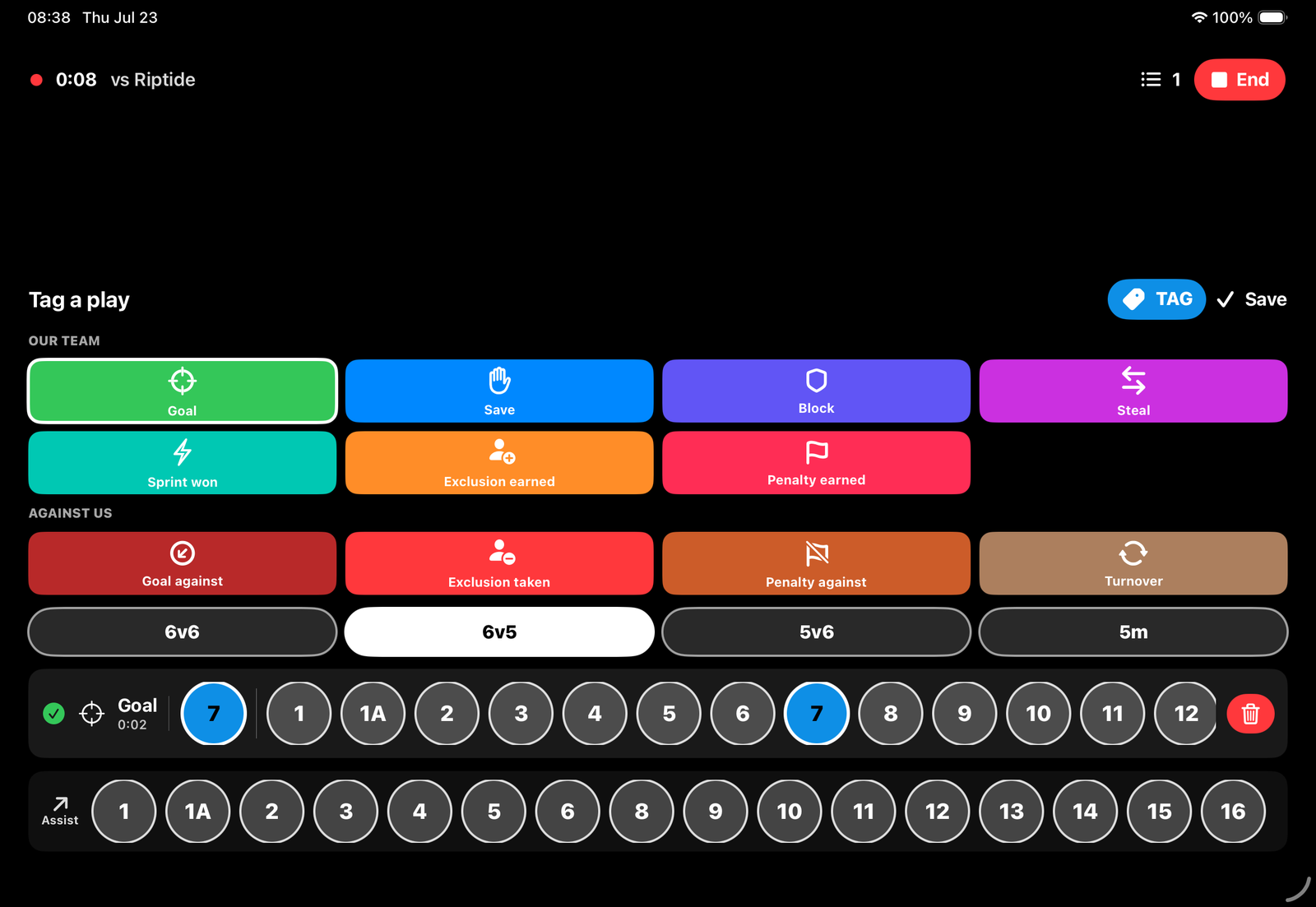
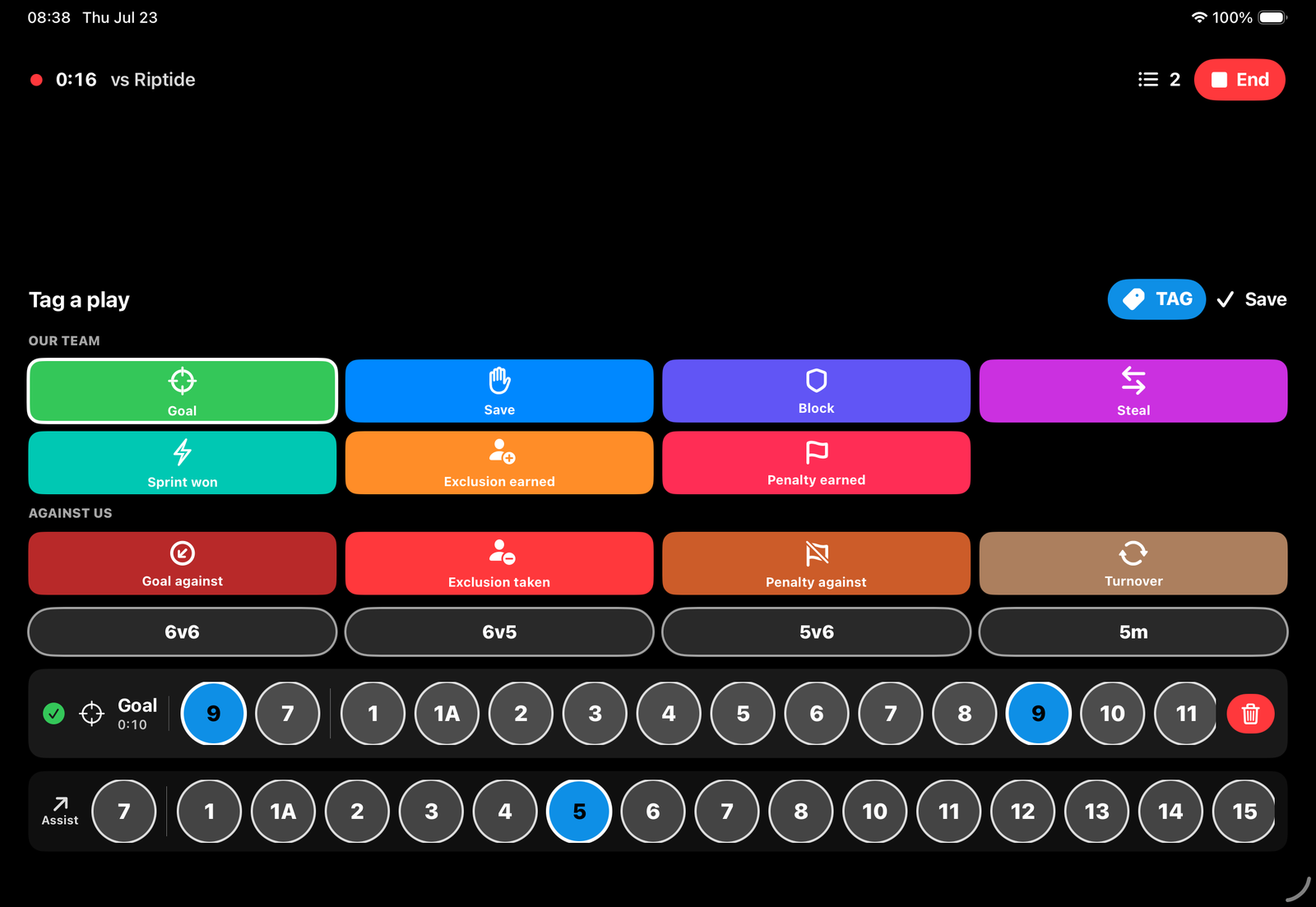
The right names, every time
Pick the roster before you start
If you keep more than one team, SplashReel asks which one is playing before each game, so a rushed start can't tag a whole game with the wrong squad. There's a No roster option for scrimmages too. If you only have one team, nothing changes.
Fix the roster after the fact
Picked the wrong team anyway? Open the saved game and switch it from the Roster button. Every clip, reel label, and name updates to match.
Finish the reel calmly
See what still needs a detail
After the game, a small bar shows how many moments still need a play, a player, or a situation. Tap it to review just those, fill them in, and watch it reach zero. Your reel waits for you.
Save the whole game as one video
Paused at quarters? Saving the full game to Photos now offers to join the parts into one video, instead of leaving four separate clips in your camera roll.
Steadier at the pool
A second camera that keeps up
If a filming phone drops for a moment, it reconnects on its own and catches up on the moments it missed, so your second angle stays complete even after a wobble.
Nothing lost when storage runs low
SplashReel warns you louder as space gets tight, and if a full memory ever cuts a game short, you can rebuild the missing clips from whatever footage was saved. Your moments are always safe.
Every angle in the reel builder
When you build a reel, you can pick any camera angle for each moment, and swap in a phone's view whenever it caught the play better.